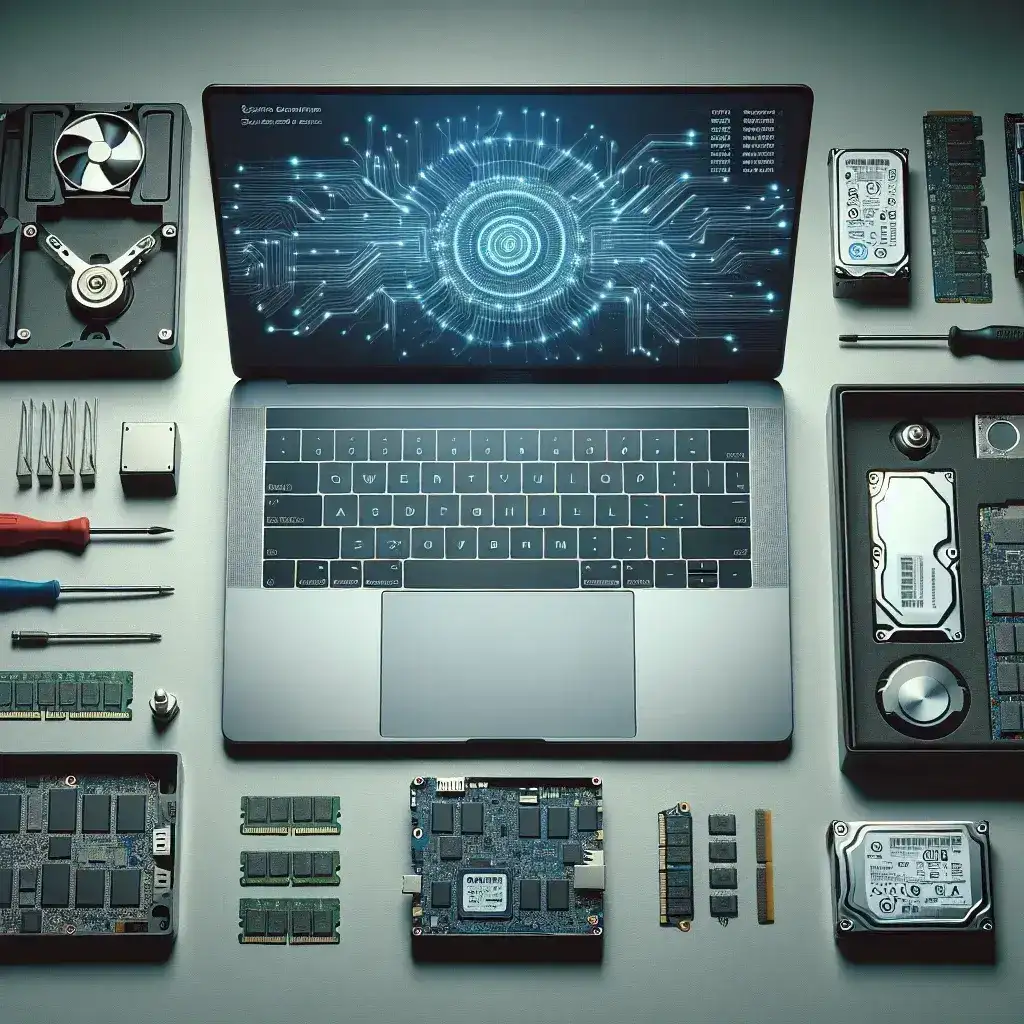

Upgrading your laptop storage can significantly enhance its performance and extend its lifespan. Whether you’re running out of space or looking to speed up your system, this comprehensive guide will walk you through the process from start to finish. We’ll cover everything from understanding the benefits of upgrading to choosing the right storage solution and providing step-by-step instructions to ensure a smooth transition.
Why Upgrade Your Laptop Storage?
In today’s digital age, where data consumption is at an all-time high, having ample storage on your laptop is crucial. Whether you’re a student juggling multiple projects, a professional dealing with large files, or a tech enthusiast with a vast media collection, running out of storage can be a major inconvenience. Upgrading your laptop storage offers several key benefits:
- Increased Capacity: Free up more space for documents, applications, and media files.
- Faster Performance: Solid State Drives (SSDs) can dramatically speed up boot times and application loading.
- Extended Lifespan: By reducing the strain on your current storage, you can prolong the life of your laptop.
- Multipurpose Use: Additional storage allows you to use your laptop for more diverse tasks without worrying about space constraints.
Types of Laptop Storage
Before you decide to upgrade, it’s essential to understand the different types of storage available for laptops. The two primary types are Hard Disk Drives (HDDs) and Solid State Drives (SSDs):
Hard Disk Drives (HDDs)
HDDs are traditional storage devices that use spinning disks to read and write data. They are generally more affordable and have higher capacities, but they are also slower and less durable compared to SSDs. Here are some pros and cons of HDDs:
- Pros:
- Affordable per gigabyte of storage.
- Available in large capacities (up to 4TB).
- Cons:
- Slower read and write speeds.
- More susceptible to physical damage.
- Noisy operation due to moving parts.
Solid State Drives (SSDs)
SSDs are the modern alternative to HDDs, using flash memory to store data. They offer faster read and write speeds, are more durable, and are more energy-efficient. However, they come at a higher cost per gigabyte. Here are the pros and cons of SSDs:
- Pros:
- Faster boot times and application loading.
- More durable; no moving parts.
- Quiet operation.
- Better power efficiency, extending battery life.
- Cons:
- Higher cost per gigabyte of storage.
- Generally smaller capacities (ranging from 256GB to 2TB).
Choosing the Right Storage Solution
Selecting the right storage option depends on your specific needs and budget. Here are some factors to consider:
- Performance Needs: If you frequently run resource-intensive applications or need fast file access, an SSD is the way to go.
- Storage Capacity: If you need a lot of space for storing large files like videos or games, an HDD might be more suitable.
- Budget: SSDs are more expensive per gigabyte, so if your budget is tight, an HDD could be a more economical choice.
- Laptop Compatibility: Not all laptops support both types of drives, so check your laptop’s specifications before making a decision.
Additionally, you might consider hybrid solutions like SSHDs (Solid State Hybrid Drives), which combine the speed of SSDs with the capacity of HDDs. These drives use a small amount of flash memory to cache frequently accessed files, providing a balance between performance and cost.
Step-by-Step Guide to Upgrade Laptop Storage
Now that you’ve chosen the right storage solution, let’s dive into the process of upgrading your laptop storage. This guide assumes you’re replacing an existing drive with a new one. If you’re adding a second drive, the steps will be slightly different, but the principles remain the same.
Tools and Materials Needed
To successfully upgrade your laptop storage, you’ll need the following tools and materials:
- New storage drive (either an SSD or an HDD).
- Phillips-head screwdriver (often included with your laptop).
- Anti-static wrist strap (optional but recommended).
- Data transfer cable (eSATA, USB, or SATA-to-USB adapter).
- Operating system installation media (if you’re starting fresh).
Preparation
Before you begin, take the following steps to prepare:
- Backup Your Data: It’s crucial to back up all important files to an external drive or cloud service. This ensures that you don’t lose any valuable data during the upgrade process.
- Download Necessary Drivers and Software: Some manufacturers provide proprietary software to help with the data transfer. Download these tools to your external drive or another computer before you start.
- Charge Your Laptop: Make sure your laptop is fully charged, as you’ll need to turn it off during the upgrade process.
- Create Bootable Installation Media: If you’re planning to reinstall your operating system on the new drive, create a bootable USB drive or DVD first.
Step 1: Remove the Old Drive
The first step is to remove the old drive from your laptop. Follow these instructions carefully:
- Power Off Your Laptop: Turn off your laptop and unplug it from the power source.
- Remove the Battery (if applicable): For older laptops with removable batteries, take out the battery to avoid any risk of electrical discharge.
- Locate the Drive Bay: Most laptops have a dedicated compartment for the hard drive or SSD. Refer to your laptop’s manual or online resources to find the exact location.
- Open the Compartment: Use a Phillips-head screwdriver to remove the screws securing the compartment cover. Gently lift the cover to expose the drive.
- Disconnect the Drive: Carefully disconnect the data and power cables from the old drive. Some laptops use a locking mechanism to secure the drive; if this is the case, release the lock before removing the drive.
- Remove the Old Drive: Once the cables are disconnected, gently slide the old drive out of the drive bay.
Step 2: Prepare the New Drive
Before installing the new drive, you need to prepare it. Here’s how:
- Connect the New Drive: Use a data transfer cable to connect the new drive to your current system or another computer. This will allow you to format the drive and transfer data if needed.
- Format the Drive: Open your operating system’s disk management tool and format the new drive. Choose the appropriate file system (NTFS for Windows, HFS+ for Mac, ext4 for Linux).
- Transfer Data (Optional): If you’re transferring data from your old drive to the new one, use the manufacturer’s cloning software or a third-party tool like EaseUS Todo Backup or Macrium Reflect. Ensure that all data is copied accurately.
- Install the Operating System (Optional): If you’re starting fresh, use the bootable installation media to install your operating system on the new drive. Follow the on-screen instructions to complete the installation.
Step 3: Install the New Drive
With the new drive prepared, it’s time to install it in your laptop. Here’s what you need to do:
- Insert the New Drive: Align the new drive with the drive bay and gently slide it in. Ensure that it sits securely and aligns with the connectors.
- Reconnect the Cables: Reattach the data and power cables to the new drive. If your laptop uses a locking mechanism, make sure to lock the drive in place.
- Replace the Compartment Cover: Once the drive is securely connected, replace the compartment cover and screw it back in.
- Reinsert the Battery (if applicable): If you removed the battery earlier, now is the time to put it back.
Step 4: Power On and Verify
After installing the new drive, power on your laptop to verify that everything is working correctly:
- Boot Up: Plug in your laptop and turn it on. If you transferred data, your laptop should boot up normally. If you installed a fresh OS, follow the initial setup prompts.
- Check Disk Management: Open your operating system’s disk management tool to ensure that the new drive is recognized and properly formatted.
- Test Performance: Run a few benchmarks to test the read and write speeds of the new drive. This will help you confirm that the upgrade has improved your laptop’s performance.
- Update Drivers: If you’re using a new drive, update the drivers to ensure optimal performance. Check your laptop manufacturer’s website for the latest drivers.
Tips for a Smooth Upgrade Process
To ensure a smooth and successful upgrade, keep the following tips in mind:
- Read Your Laptop’s Manual: Different laptops have different internal configurations. Always refer to your manual or the manufacturer’s online resources for specific instructions.
- Be Patient: Data transfer and OS installation can take several hours, especially for large amounts of data. Plan your upgrade for a time when you won’t need your laptop urgently.
- Use Anti-Static Measures: Static electricity can damage sensitive components. Use an anti-static wrist strap or touch a grounded metal object periodically to discharge static.
- Keep the Workspace Clean: Work in a clean, well-lit area to avoid losing screws or damaging components. A clutter-free workspace makes the process much easier.
- Double-Check Connections: Before closing up your laptop, double-check that all cables are securely connected. Loose connections can cause issues later on.
Conclusion
Upgrading your laptop storage is a straightforward process that can significantly improve your computing experience. Whether you choose an SSD for speed or an HDD for capacity, taking the time to plan and execute the upgrade correctly will pay off in the long run. Remember to back up your data, follow the steps carefully, and use the right tools to ensure a smooth transition. With your new storage drive in place, you’ll enjoy faster performance, more space, and a happier user experience.
If you have any questions or run into issues during the process, don’t hesitate to reach out to the manufacturer’s support or consult online forums. Happy upgrading!
Deixe um comentário